Local execution
Pair an IDE or the CLI on your own machine; the agent runs on your laptop with your credentials.
- Pair an IDE or the CLI
- Agent runs on your laptop
- Provisioned from the app
- Runs with your laptop closed
- VM / VPS / Docker box
- PRO · bring your own infra
The simplest execution plane: install codeam-cli in a terminal or the CodeAgent Mobile plugin in your IDE, pair it with your phone, and keep working exactly as you do today. The agent — Claude Code, Copilot, Cursor, JetBrains AI, and more — runs on your own hardware with your own API key or subscription. The phone is a remote control, not a substitute machine.
Pair codeam-cli in any terminal, or the same extension across VS Code, Cursor, Windsurf, and JetBrains IDEs.
The agent authenticates with the API key or subscription you already use — nothing new to provision.
CodeAgent never runs your code; all AI inference and file access happen locally on your computer.
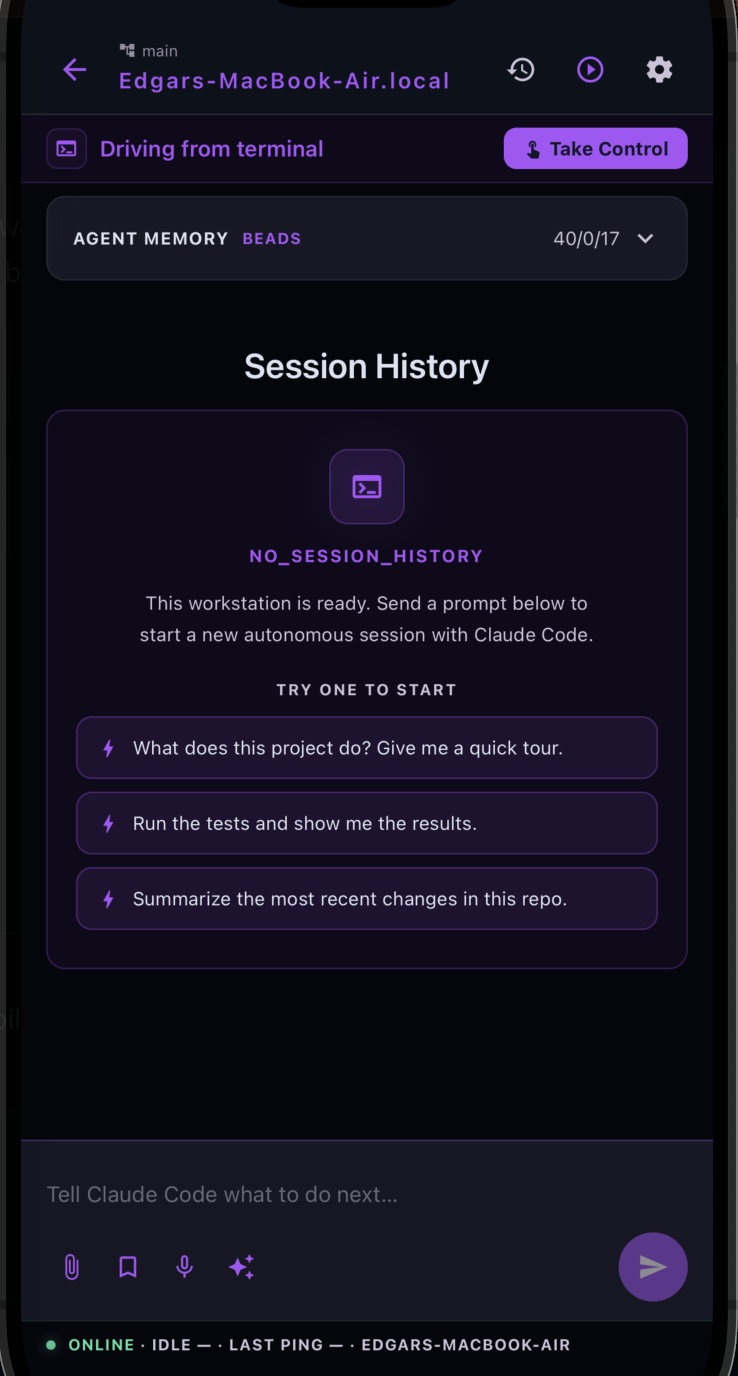
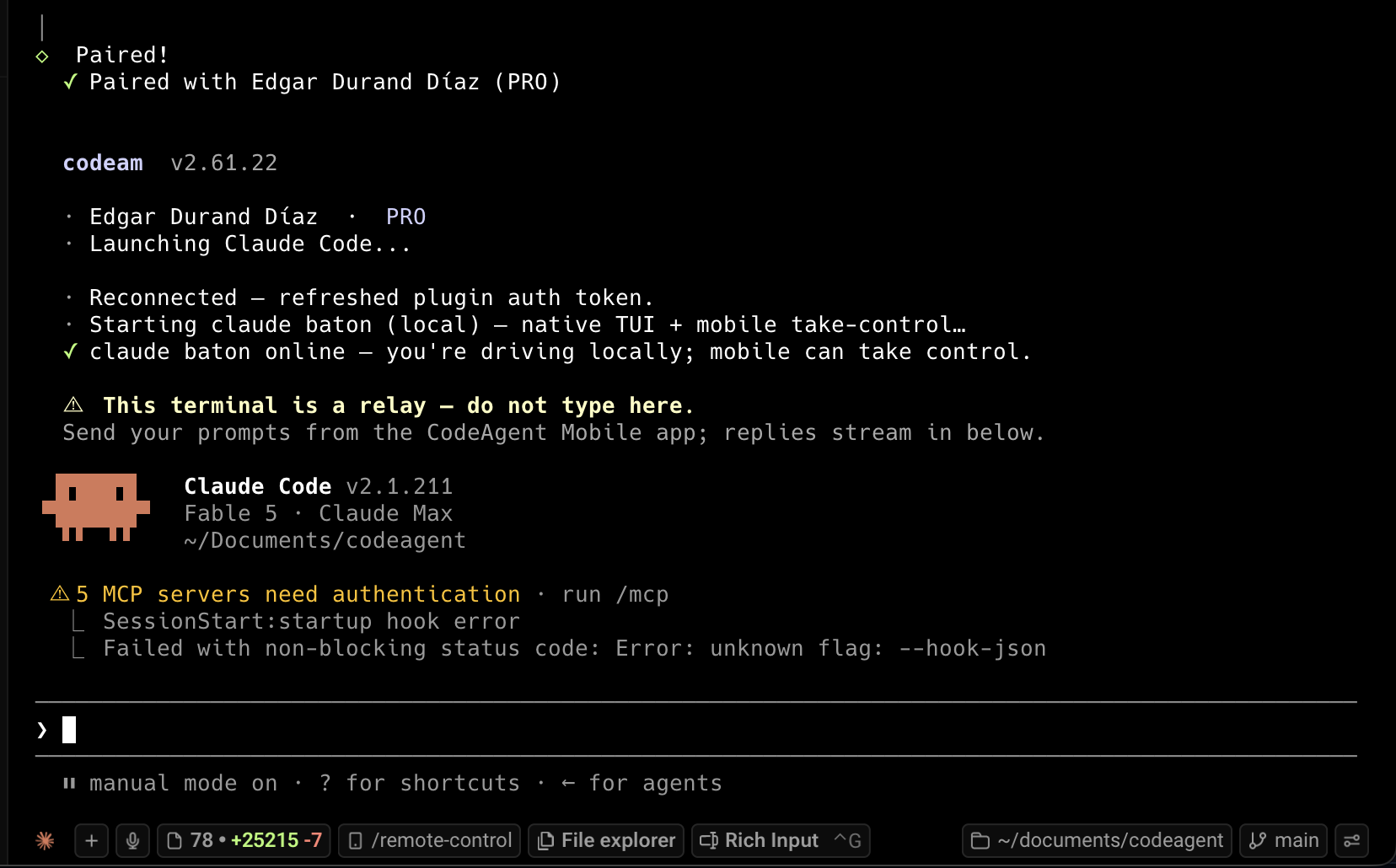
On a local session, hand the same conversation between your terminal and the mobile app with a turn-based baton, then hand it back.
- 1Install the client
npm install -g codeam-clifor a terminal, or the CodeAgent Mobile extension/plugin for your IDE. - 2Run the pairing command
codeam pairin the terminal, or "Pair Device" from the IDE command palette. - 3Scan the QR (or type the code)
A QR code and a 6-character fallback appear; codes expire after 5 minutes.
- 4Send prompts from your phone
The agent runs on your machine and streams its response back in real time.
Running the agent's native terminal UI locally? Take Control lets you switch to driving the same conversation from mobile, then hand it back — a turn-based baton, not two agents running at once.
FAQ
Related
Ready to try it?