IDE plugins
Pair VS Code, Cursor, or Windsurf with the CodeAgent extension.
- VS Code Marketplace
- Command-palette pairing

- Open VSX build
- Same extension

- Open VSX build
- Streams to your phone
One extension covers VS Code, Cursor, and Windsurf (Cascade) — install it from the VS Code Marketplace or Open VSX, run "CodeAgent Mobile: Pair Device", and control the AI agent already built into your editor from the mobile app or web dashboard.
The same extension installs in VS Code, Cursor, and Windsurf without a separate build per editor.
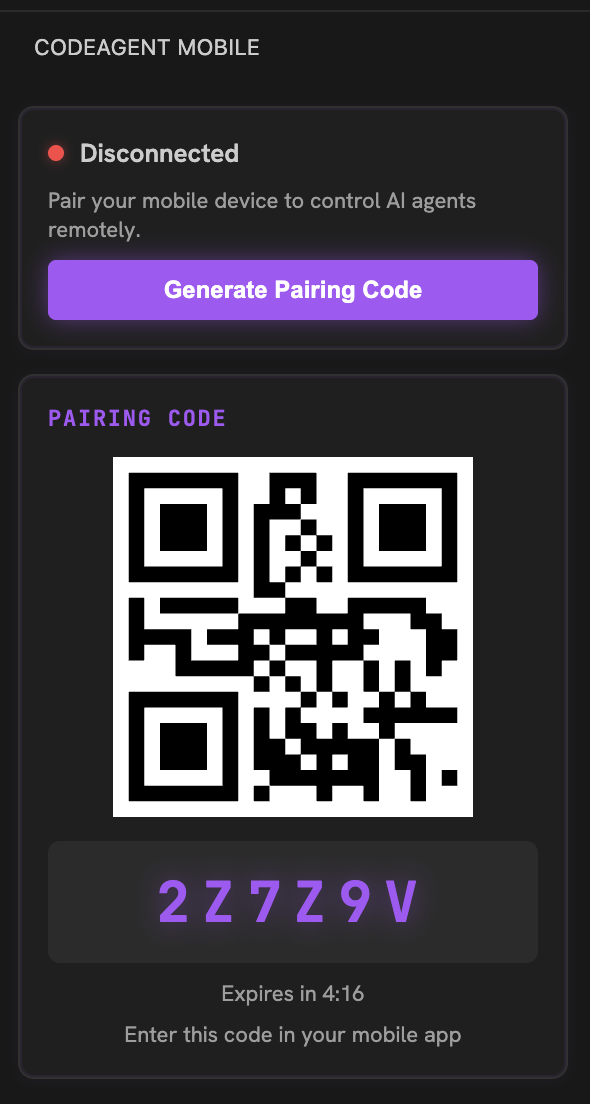
Run "CodeAgent Mobile: Pair Device" from the command palette to get a QR code and fallback code.
Prompts route to GitHub Copilot Chat, Cursor's agent, or Cascade, and stream the response back to the phone.
Code changes stream file-by-file with syntax highlighting, so you can review them with the same fidelity as the IDE.
- 1Install the extension
From the VS Code Marketplace (VS Code) or Open VSX (Cursor, Windsurf).
- 2Run "Pair Device"
Open the command palette and run "CodeAgent Mobile: Pair Device" to get a QR + 6-character code.
- 3Scan or enter the code
Open the mobile app or web dashboard and pair within 5 minutes.
- 4Send a prompt
Type or speak from the phone — the extension forwards it to your editor's AI agent.
FAQ
Related

Ready to try it?